
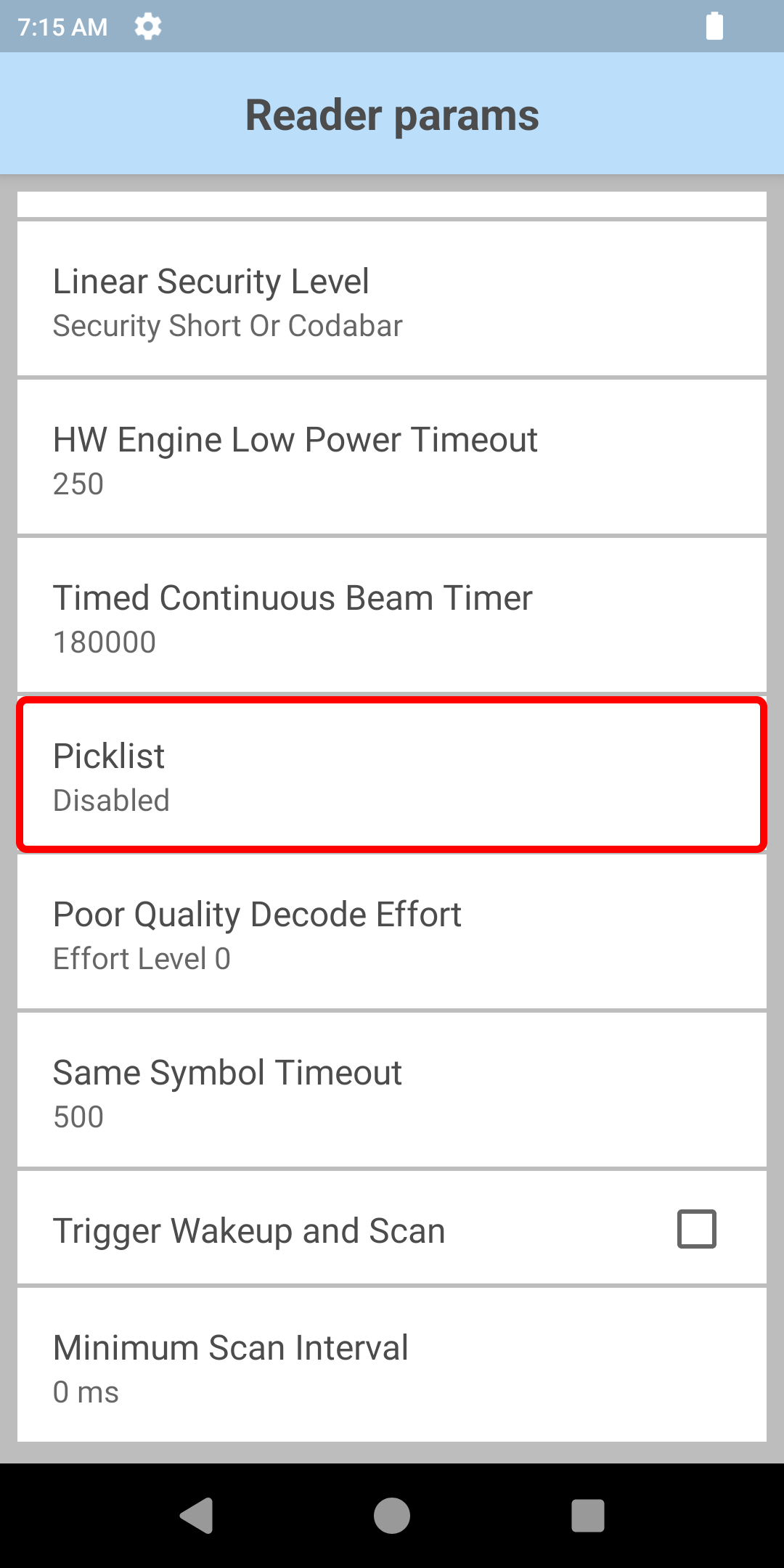
Picklist - Permits selection of Picklist mode, which instructs the imager to decode only the barcode directly under the cross-hair/reticle in the preview screen. This feature is most useful for applications in which multiple barcodes may appear in the field of view during a decode session but only one is desired for decoding.
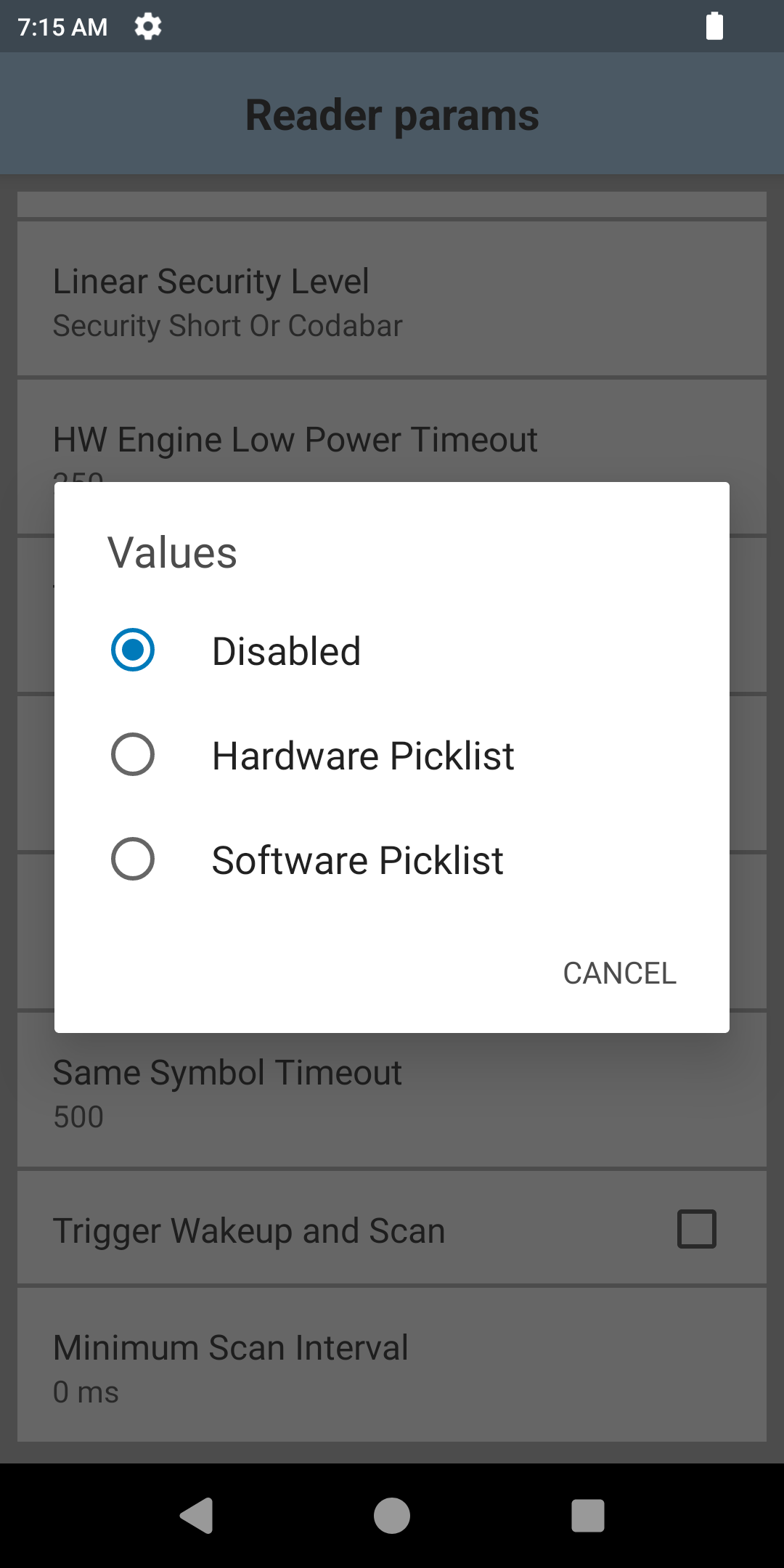
- Disable - Disables Picklist mode; any barcode within the field of view can be decoded.
- Hardware Picklist - Picklist mode is enabled by sending a command to hardware. 8y6
- Software Picklist - Picklist feature is handled in the software; no commands are sent to hardware.
Notes:
- Performance might vary on some devices if Hardware or Software Picklist modes are set.
- If using MultiBarcode mode, see important behavior notes in Zebra TechDocs online manual of Datawedge.
Zebra TechDocs online manual: Datawedge settings
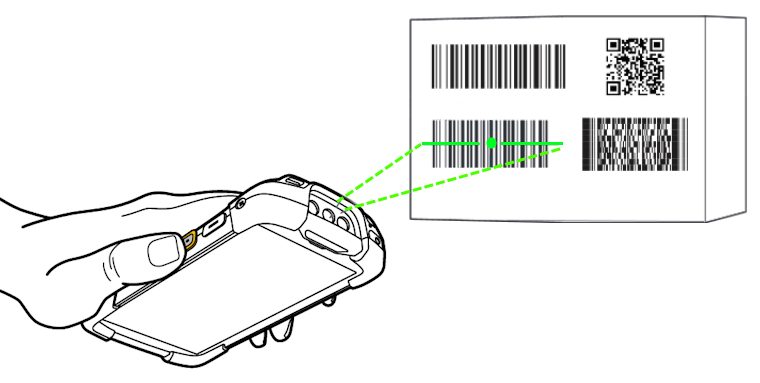
The following instructions were created based on an Android 14 device.
The settings may vary on older versions.
| Select Datawedge application | Select the profile in which the Picklist mode is to be set. | Go to the “Configure scanner settings” menu. |
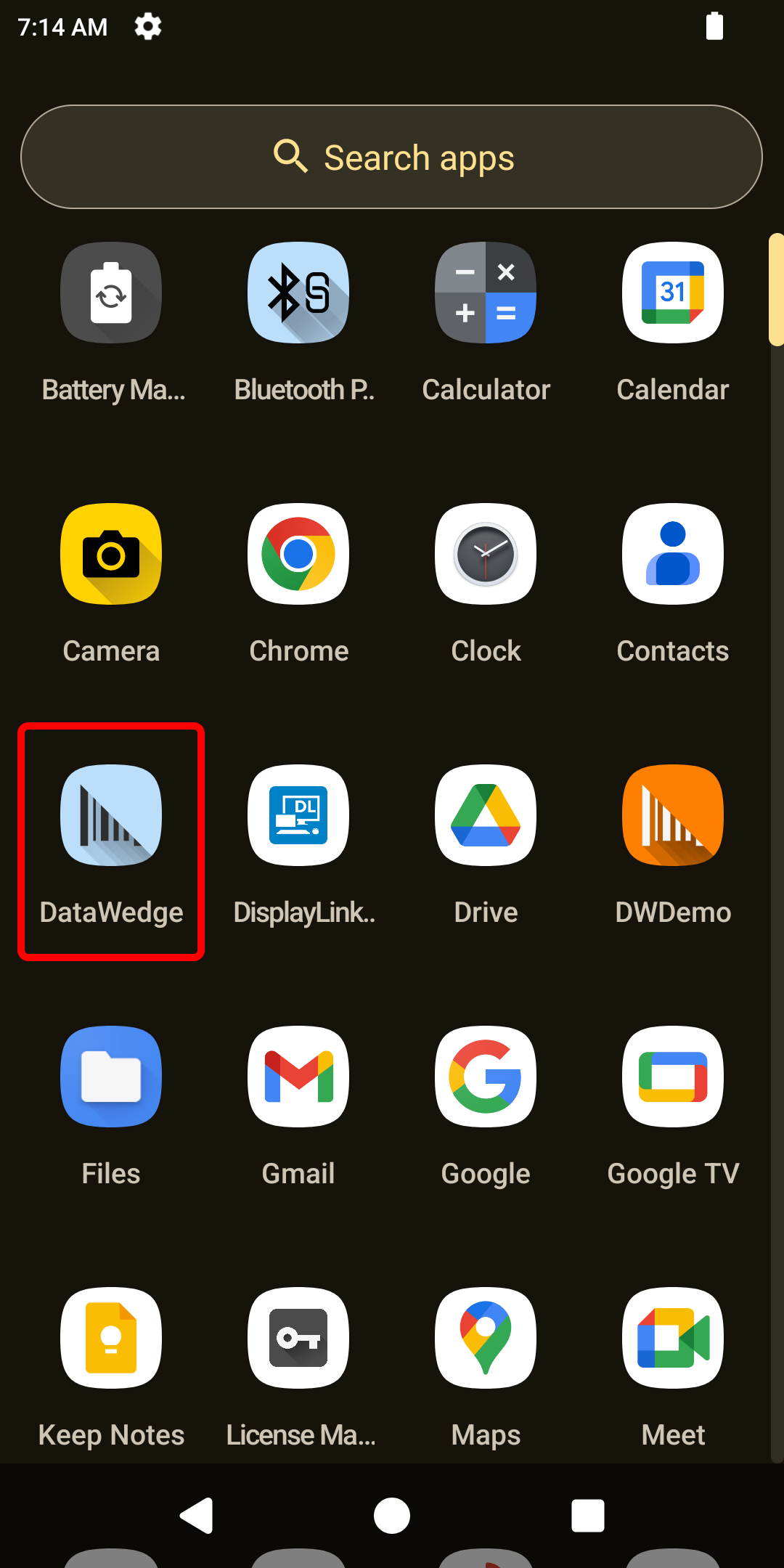 | 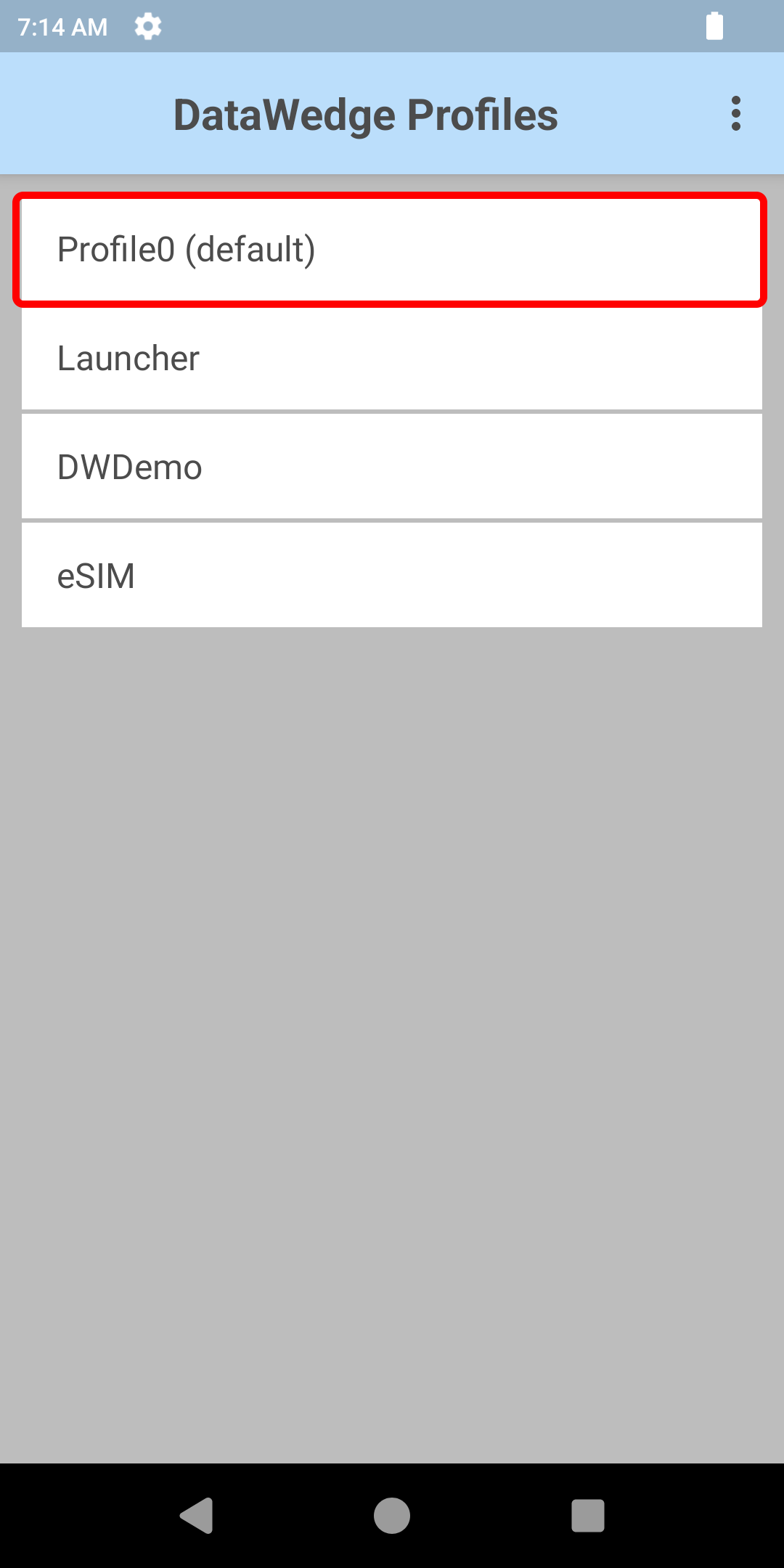 | 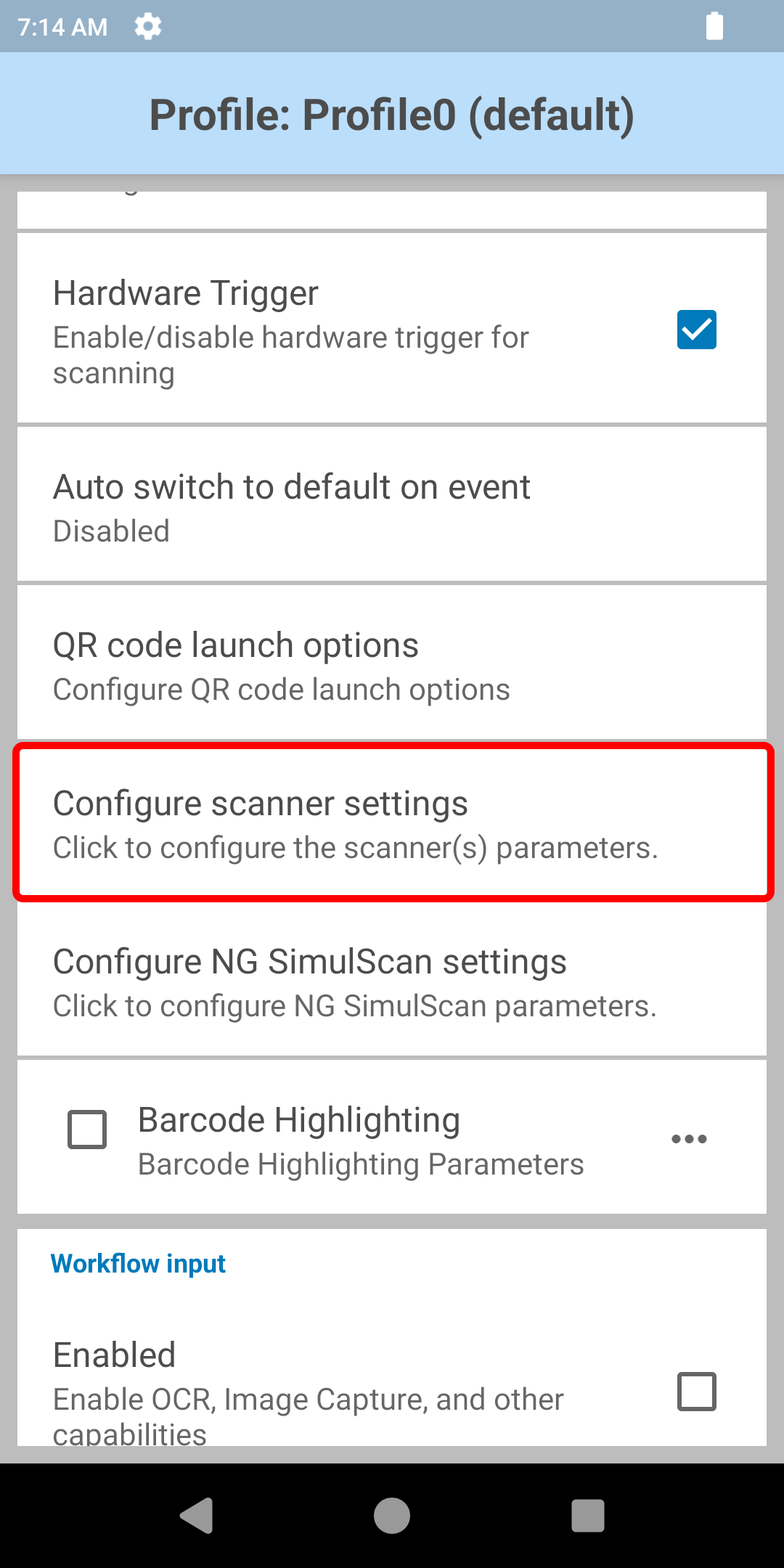 |
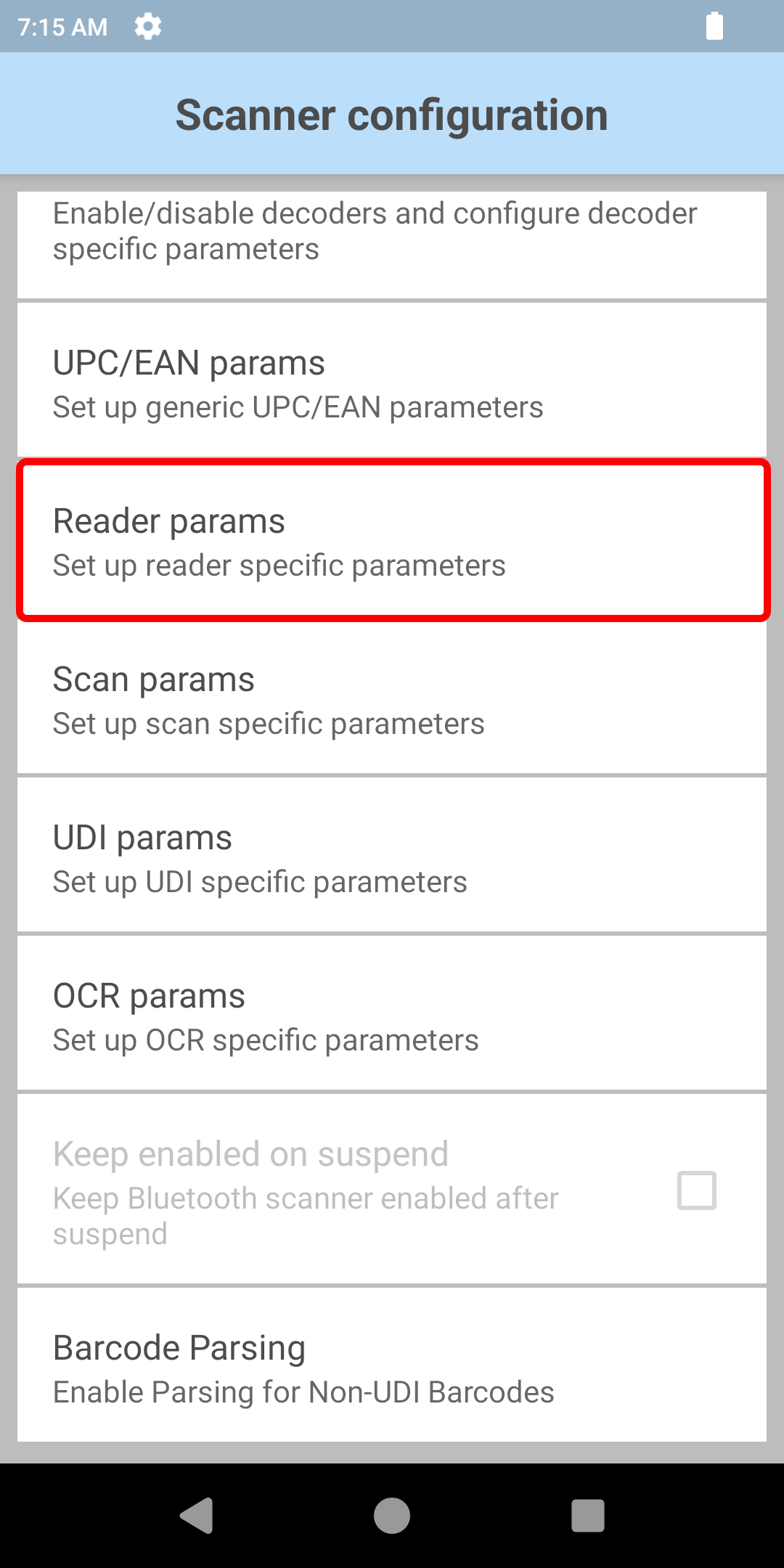
| Go to the “Reader params” menu. | Go to the “Picklist” menu. | Set your Picklist parameters |
 |  |  |