
123 Scan Utility
Recommended for programming the scan engine via a Windows PC.
123Scan is a software tool from Zebra Technologies that simplifies scan engine setup and more.
Intuitive enough for first-time users, the 123Scan wizard guides users through a streamlined setup process.
Settings are saved in a configuration file that can be printed as a single programming barcode for scanning, emailed to a smart phone for scanning from its screen or downloaded to the scan engine.
The utility is a cost free software.
The tool allows:
- General setup of BARTEC ET60/65EX2 Windows Tablet series
- Programming incl. ADF and MDF
- ADF = Advanced Data Formatting
- MDF = Multi Data Formatting
- Firmware Update
- Data Viewer for test of barcodes and images
- Creation of programming barcodes
- Upload of configuration to scanner
- further functions see description of Zebra
The actual version of 123 Scan Utility can be found on Zebra "Support and Download" web page.
Downloads and resources:
Note: The Zebra documentation, which includes manuals and videos, explains how to use the 123 Scan Utility.
The 123 Scan Utility can be installed either directly on the BARTEC ET60/65EX2 Windows Tablet or on another Windows PC.
When using it on the BARTEC ET60/65EX2 Windows Tablet:
- The configuration can be applied directly to the scan engine on the device.
- A configuration file can be created and saved for import onto other BARTEC ET60/65EX2 Windows Tablet.
- The settings can be displayed or printed as a programmable code for scanning.
When used on another Windows PC:
- A configuration file can be created and saved for import onto other BARTEC ET60/65EX2 Windows Tablet.
- The settings can be displayed or printed as a programmable code for scanning.
First steps for creating a configuration:
When using it on the BARTEC ET60/65EX2 Windows Tablet: The 123 Scan Utility detects the correct plugin. | When used on another Windows PC: You must manually select the correct plugin in the 123 Scan Utility. | ||
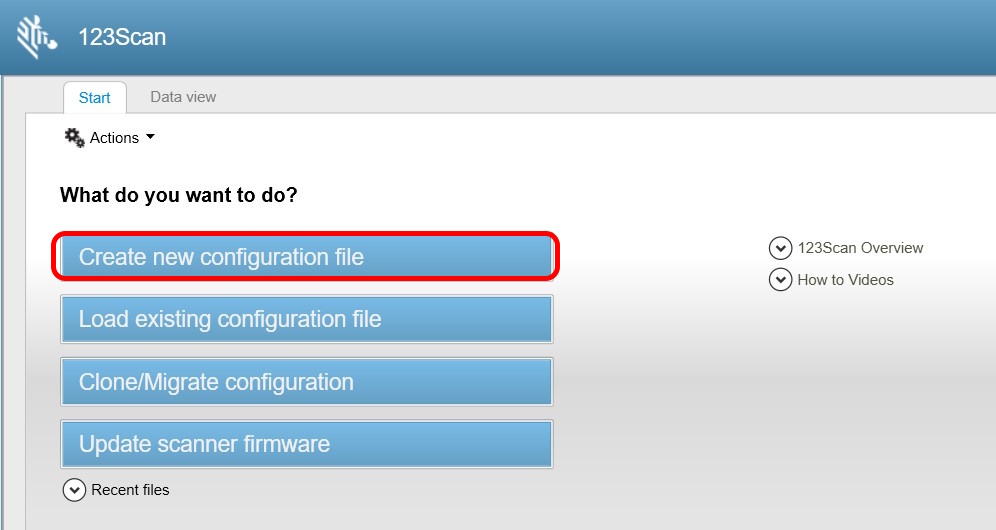
| Open the 1323 Scan Utility. Select "Create a new configuration file". | |||
 | |||
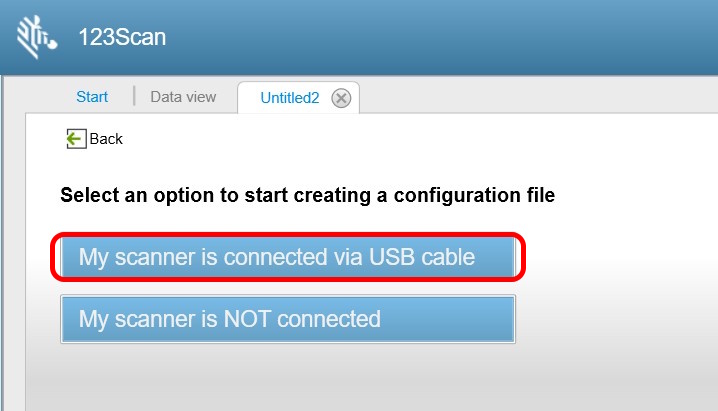
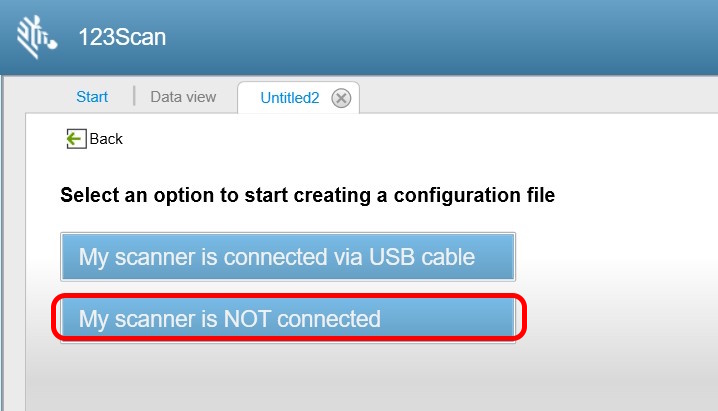
| Select "My scanner is connected via USB cable". Note: The scanner is internal with USB cable connected. | Select "My scanner is NOT connected". | ||
 |  | ||
| --- The device is automatically detected --- | Select the device "ET6XW" Note: It is complaint with the BARTEC ET60/65EX2 Windows Tablet. | ||
| --- The device is automatically detected --- | 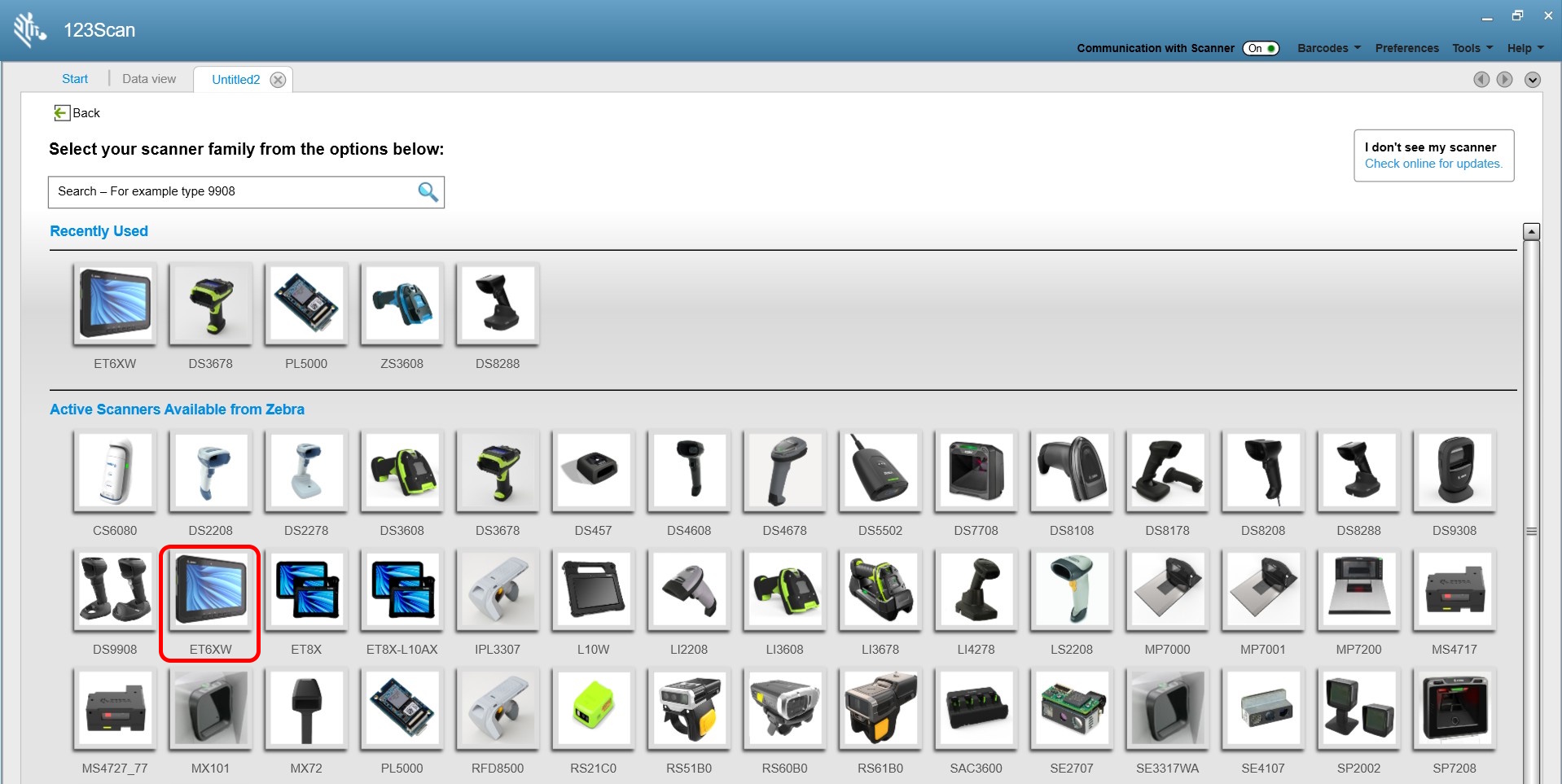 | ||
| Select the Plugin: ET6XW-WINDOWS Note: The release notes may indicate a newer version. The screenshot is from August 10, 2026. | |||
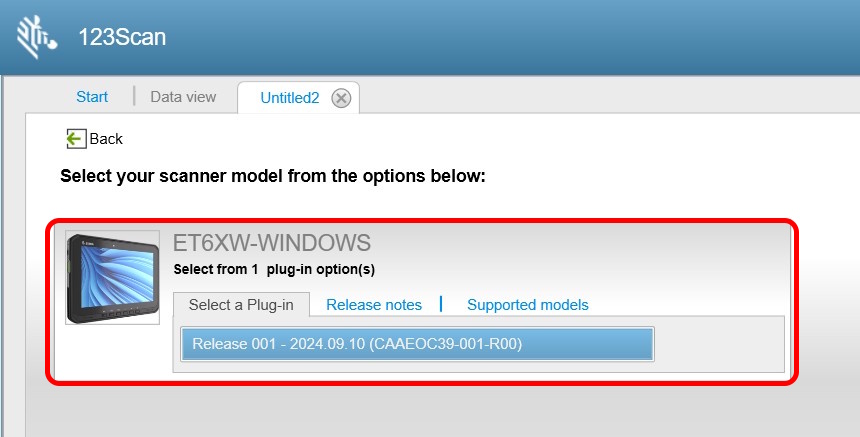 | |||
| You are now in the Setup Wizard and can create your configuration. | |||
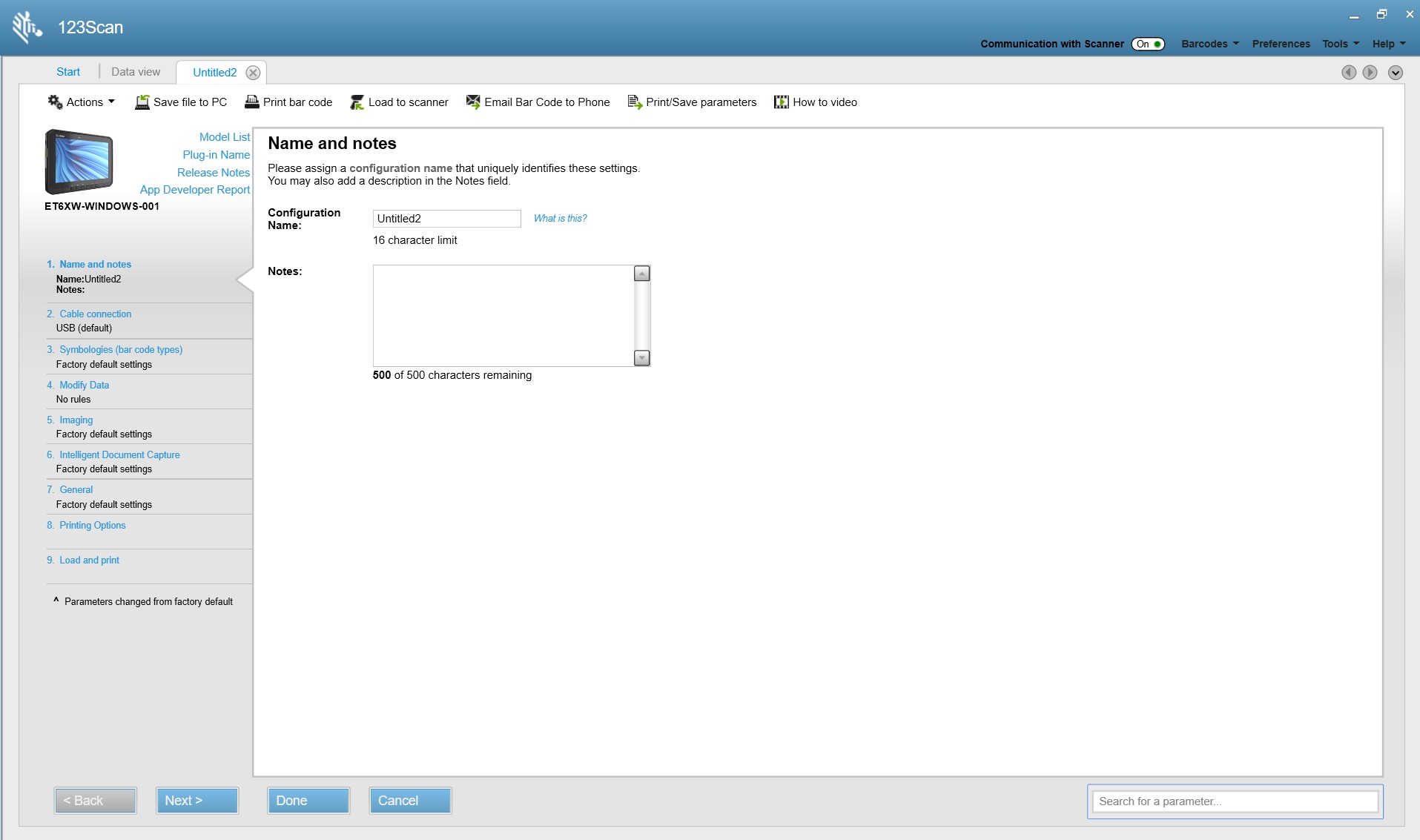 | |||
| Once the configuration is complete, you now can save the file to your PC. | |||
 | |||
| Once the configuration is complete, you now have the following options for uploading to the scan engine. | Once the configuration is complete, you now have the following options for uploading to the scan engine. | ||
| load configuration to the scan engine |  | --- can't be loaded direct --- | --- |
| print your configuration as programming barcode and scan it |  | print your configuration as programming barcode and scan it |  |
| send the configuration via email and scan the programming barcode from display |  | send the configuration via email and scan the programming barcode from display |  |