
The following description is written for Android 10 on TC77ex-NI Touch Computer.
The procedure can vary on other Android versions or devices.
The correct procedure is always described in the appropriate Product Reference Guide of Zebra.
The device display is able to detect touches using a finger, a conductive-tip stylus, or gloved finger.
| Important note: A glove can be made of medical latex, leather, cotton, or wool. For optimal performance use a BARTEC certified and specified stylus. |
| 1. Go to “Settings” | 2. Scroll down and select “Display” |
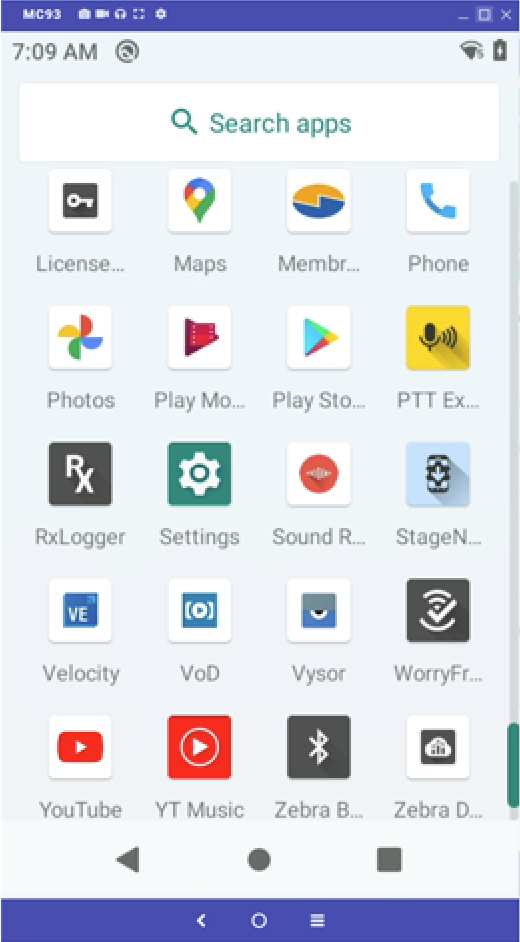 | 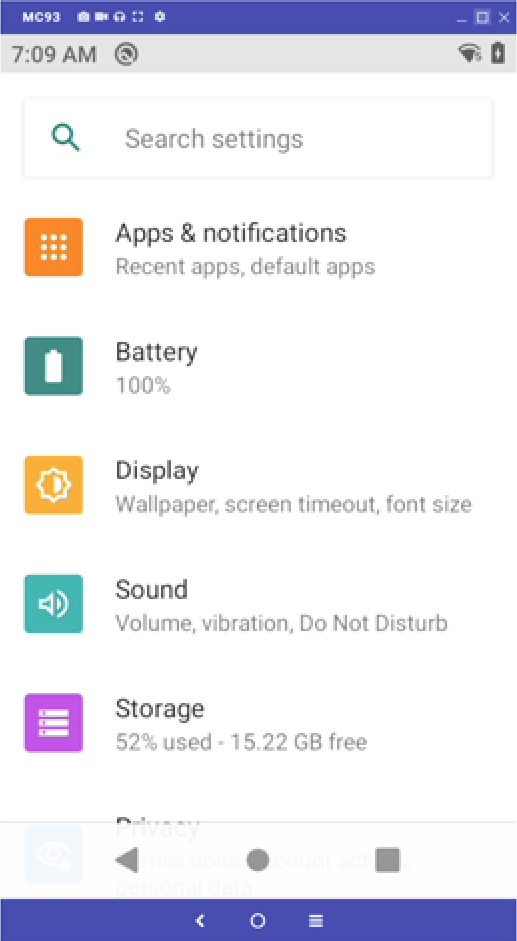 |
| 3. Touch Display > “Advanced” | 4. Select “Touch panel mode” |
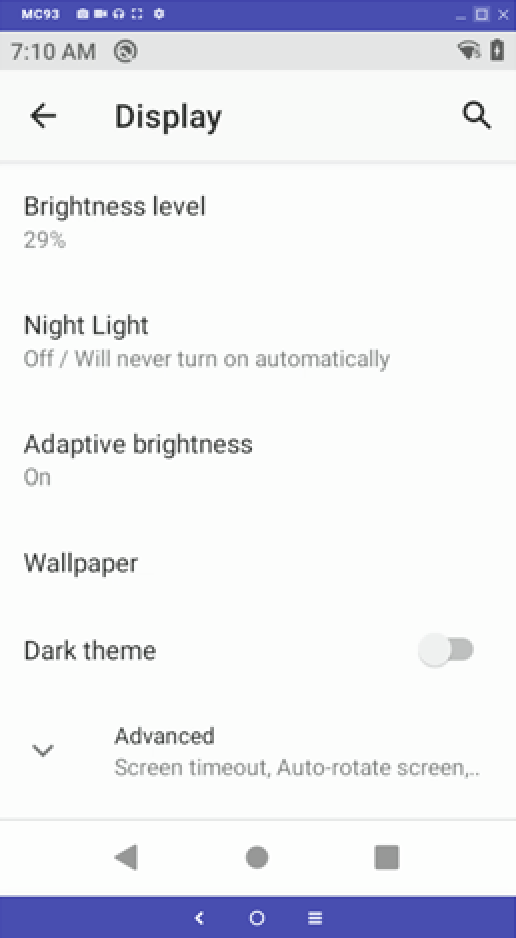 | 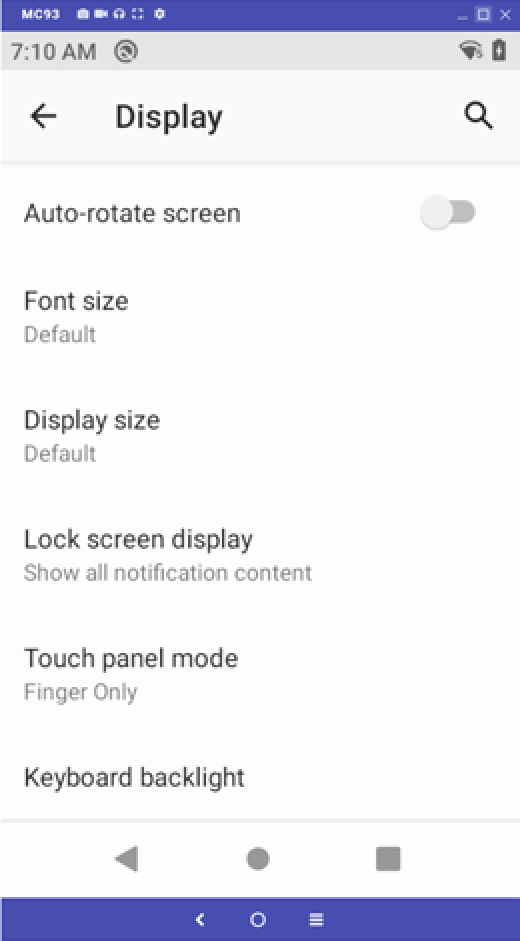 |
5. Select the touch mode for your application.
| |
Example for MC93ex-NI with Android 10 and Build number 10-16-10.00-QG-U00-STD-HEL-04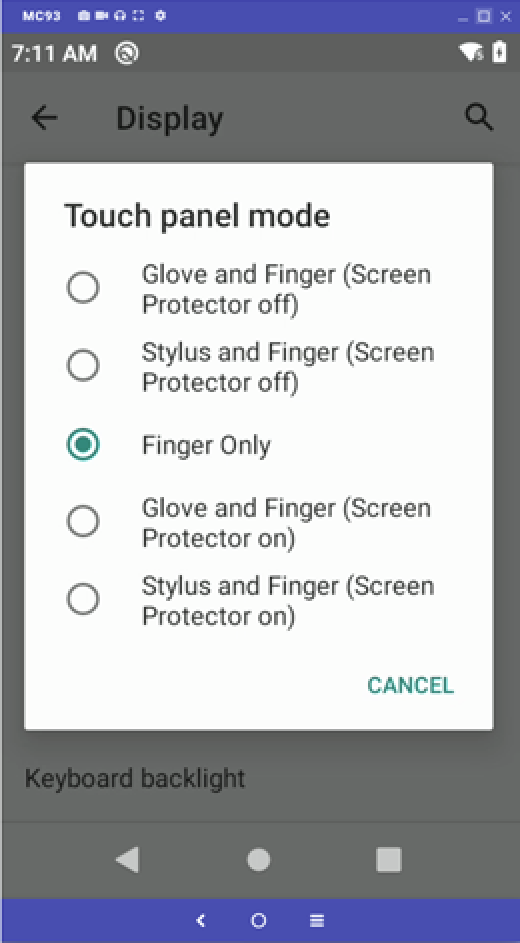 | |
| 6. Leave menu with touch on “Home Menu” | |