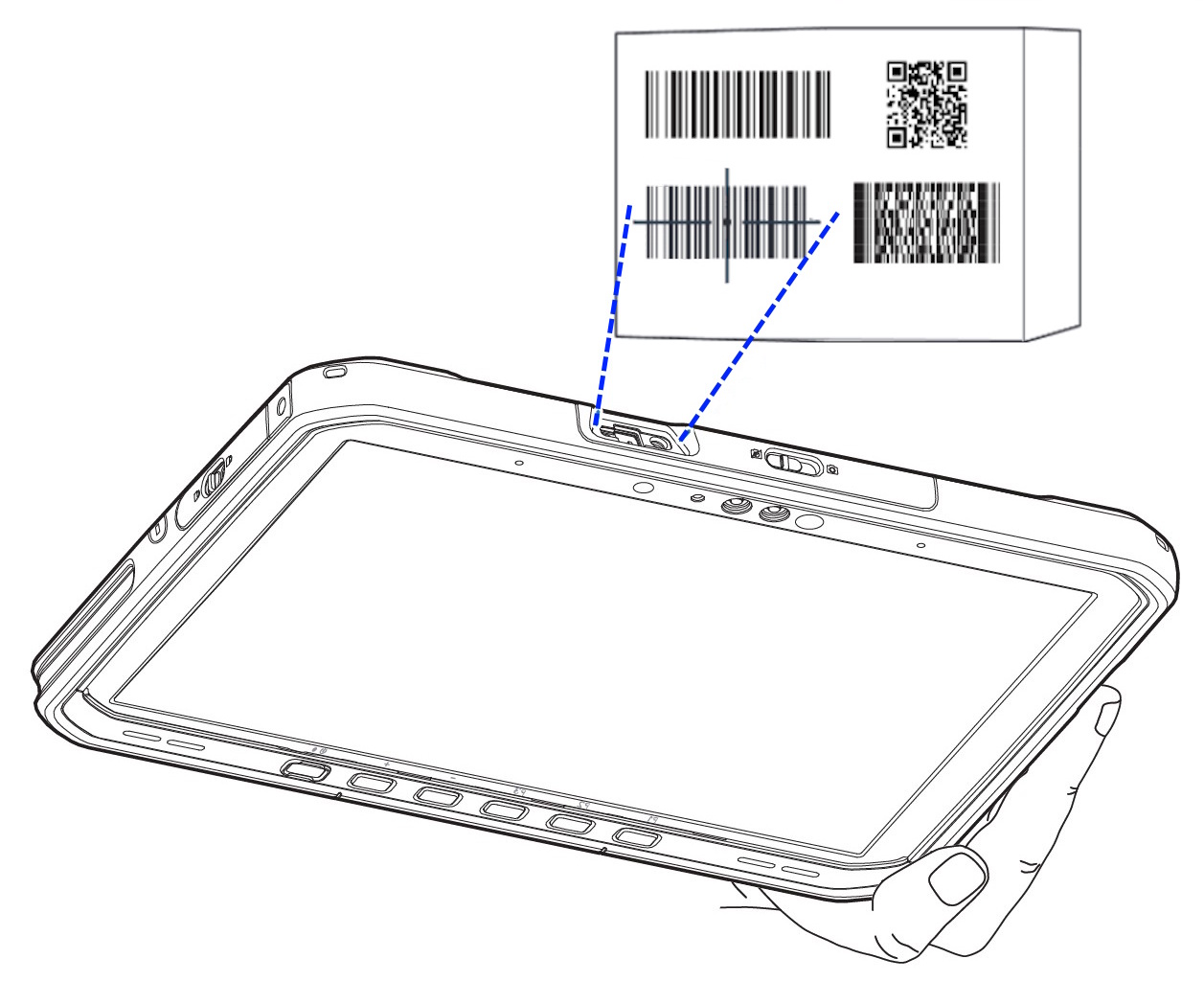
It enables the scan engine in the BARTEC ET60/65EX2 Windows Tablet to decode only barcodes that are aligned under the laser crosshair or LED aiming dot. This feature is useful in applications where multiple bar codes may appear in the field of view during a decode session and only one of them is targeted for decode.
Configuration:
The configuration can be done by use of the following tools/resources.
- by use of the Zebra 123 Scan Utility application
Using the 123 Scan Utility
See the article about 123 Scan Utility.
Follow the steps to open the wizard.
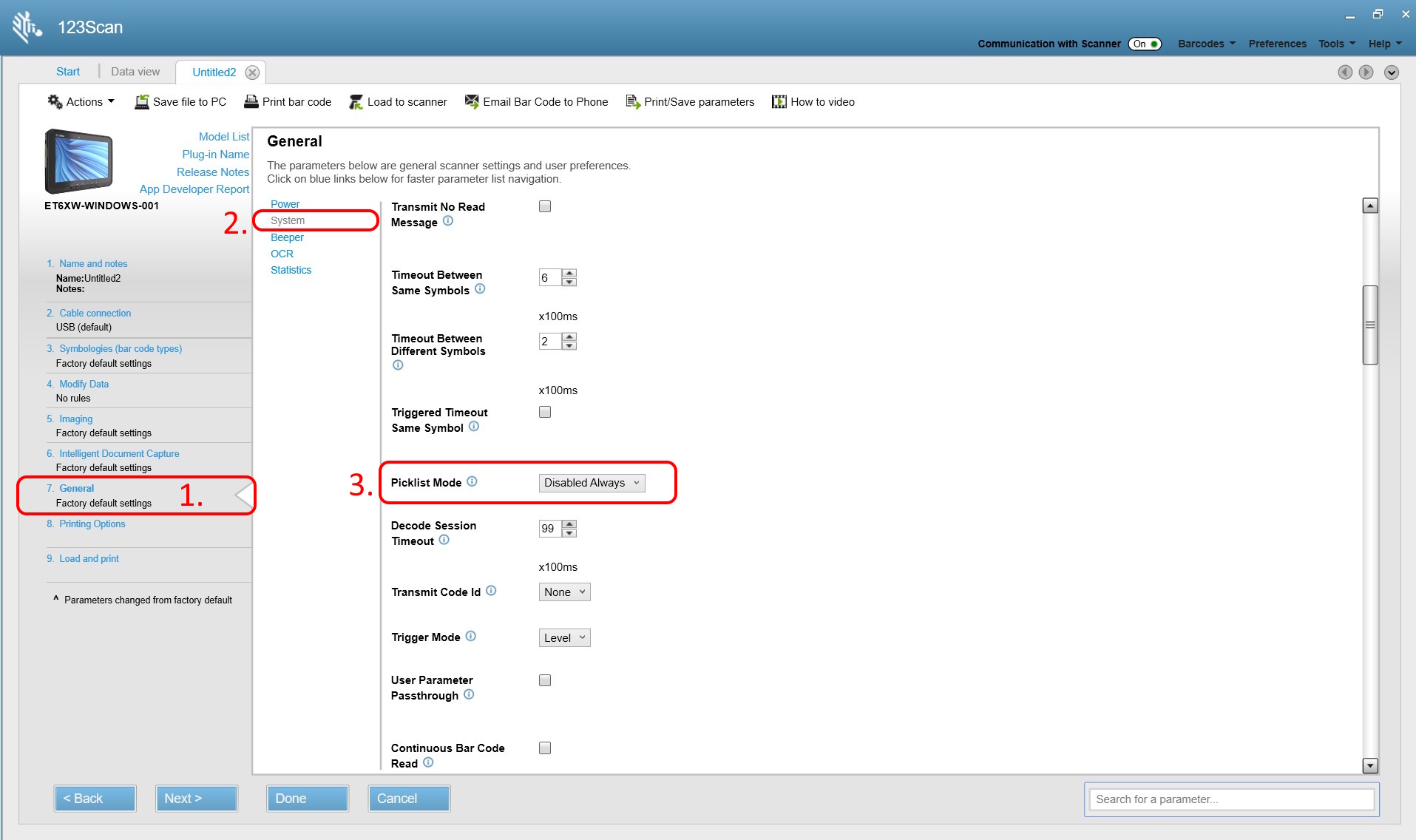
- Select the menu “7. General”.
- Select the sub menu “System” and scroll down to “Picklist Mode”.
- Select one of the following Picklist modes for the scan engine:
- Disabled Always - Picklist mode is always disabled.
Default setting - Enable Always - Picklist mode is always enabled.
- Disabled Always - Picklist mode is always disabled.