
For the first time, DPM decoding is no longer limited exclusively to specialized warehouse technology. This software-based feature extends the DPM reading capabilities of Zebra/BARTEC’s Android mobile and touch computers, as well as its tablet PC series, to a wider range of devices.
By using the standard integrated scan engines or even the rear-facing cameras, organizations can now address DPM use cases without purchasing new, single-purpose hardware. Now, for the first time customers can take advantage of a wide range of Zebra devices and enable DPM scanning across an organization's user types.
This enhancement dramatically lowers the Total Cost of Ownership (TCO) for implementing component-level tracking. It’s a zero-cost capability extension available through a DataWedge update (v15.0.87+ on Android 14+), eliminating the need for specialized DPM SKUs or extra licensing fees. This approach makes robust tracking financially viable for more applications, empowering organizations to connect their frontline with the real-time data needed to optimize workflows.
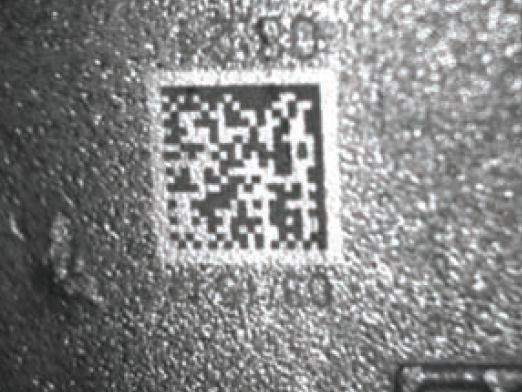
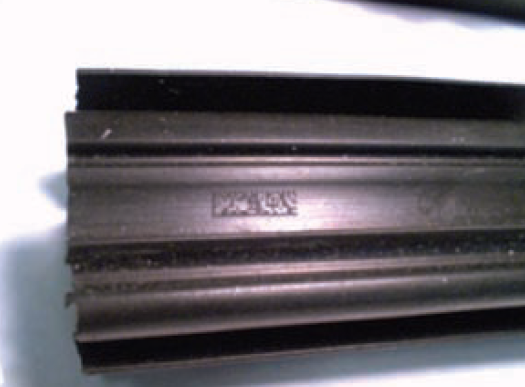
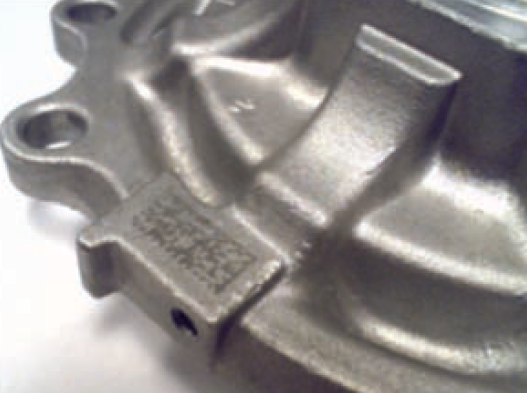
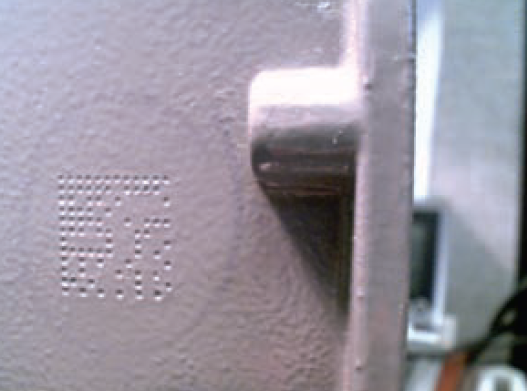
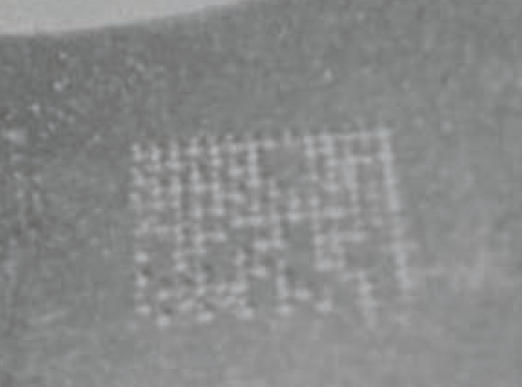
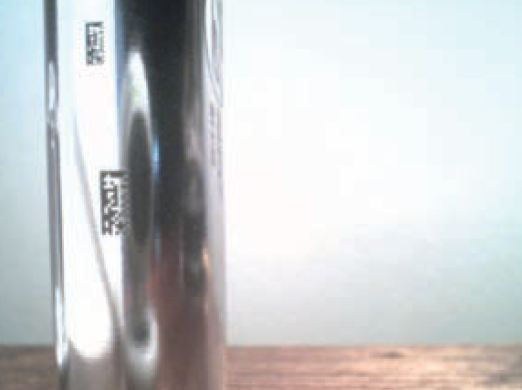
DPM marking examples:
| Laser Mark on Rough Surface with Clean Up Pass | Laser Mark on Rubber | Peen Mark on Cast Surface |
 |  |  |
| Painted Over Peen Mark Shows How Dots light up from Angle Lighting | Peen Mark on Hard Plastic | Rectangular Laser Marks on Shiny Curved Surface |
 |  |  |
For more information read the Zebra article: Unlock Hidden Value: Software-Based DPM Scanning for Your Mobile Fleet
Supported devices and the minimum required version of Android:
| BARTEC device name | Zebra device name | Android version | minimum Android build number (or later) |
| BARTEC MC9400/9450EX2 Mobile Computer | MC9400/MC9450 Mobile Computer | Android 14 | 14-15-22.00-UG-U149 |
| Android 15 | 15-18-19.00-VG-U17 | ||
| TC78ex-NI Touch Computer | TC78 Mobile Computers | Android 14 | 14-35-10.00-UG-U140 |
| Android 15 | 15-18-09.00-VG-U20 | ||
| BARTEC ET60/65EX2 Android Tablet | ET60/ET65 Enterprise Tablets | Android 14 | 14-35-10.00-UG-U140 |
| Android 15 | 15-18-09.00-VG-U20 |
What settings do I need to configure in Datawedge to be able to read DPM?
See the Zebra TechDocs online manual for Datawedge
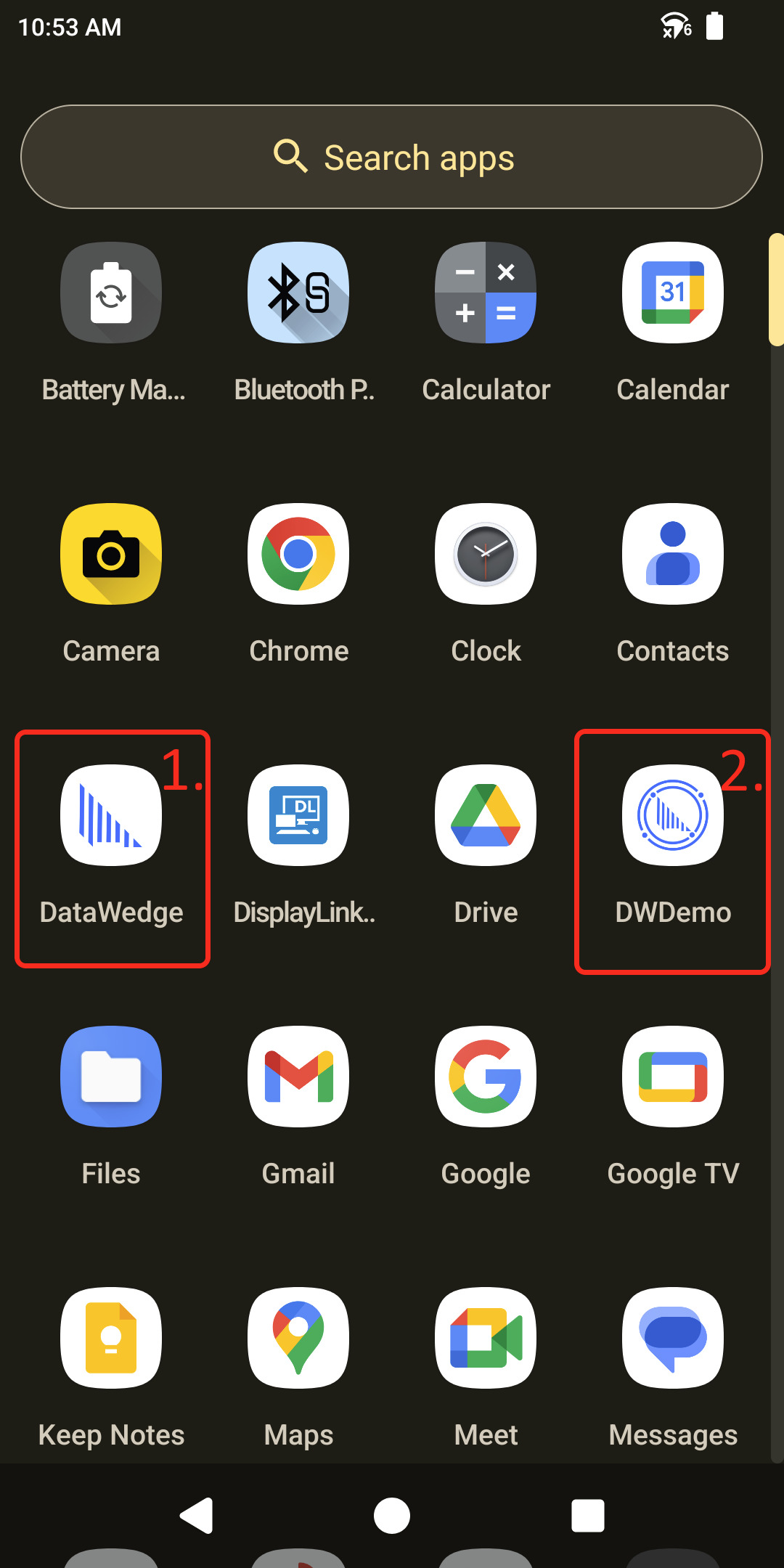 | Open the Datawege utility.
|
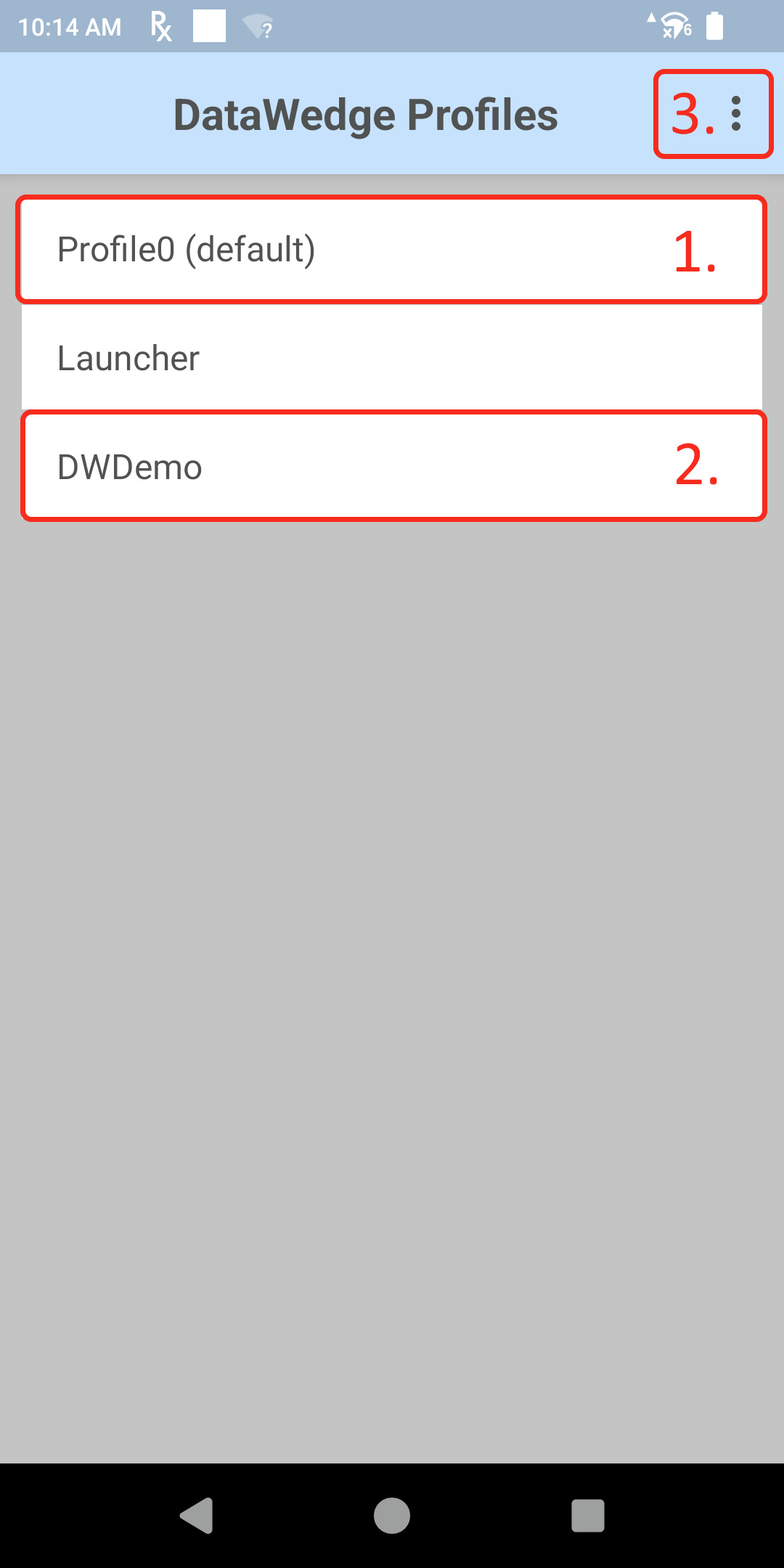 | Select the profile you want to configure for DPM.
The following steps are the same for all profiles. |
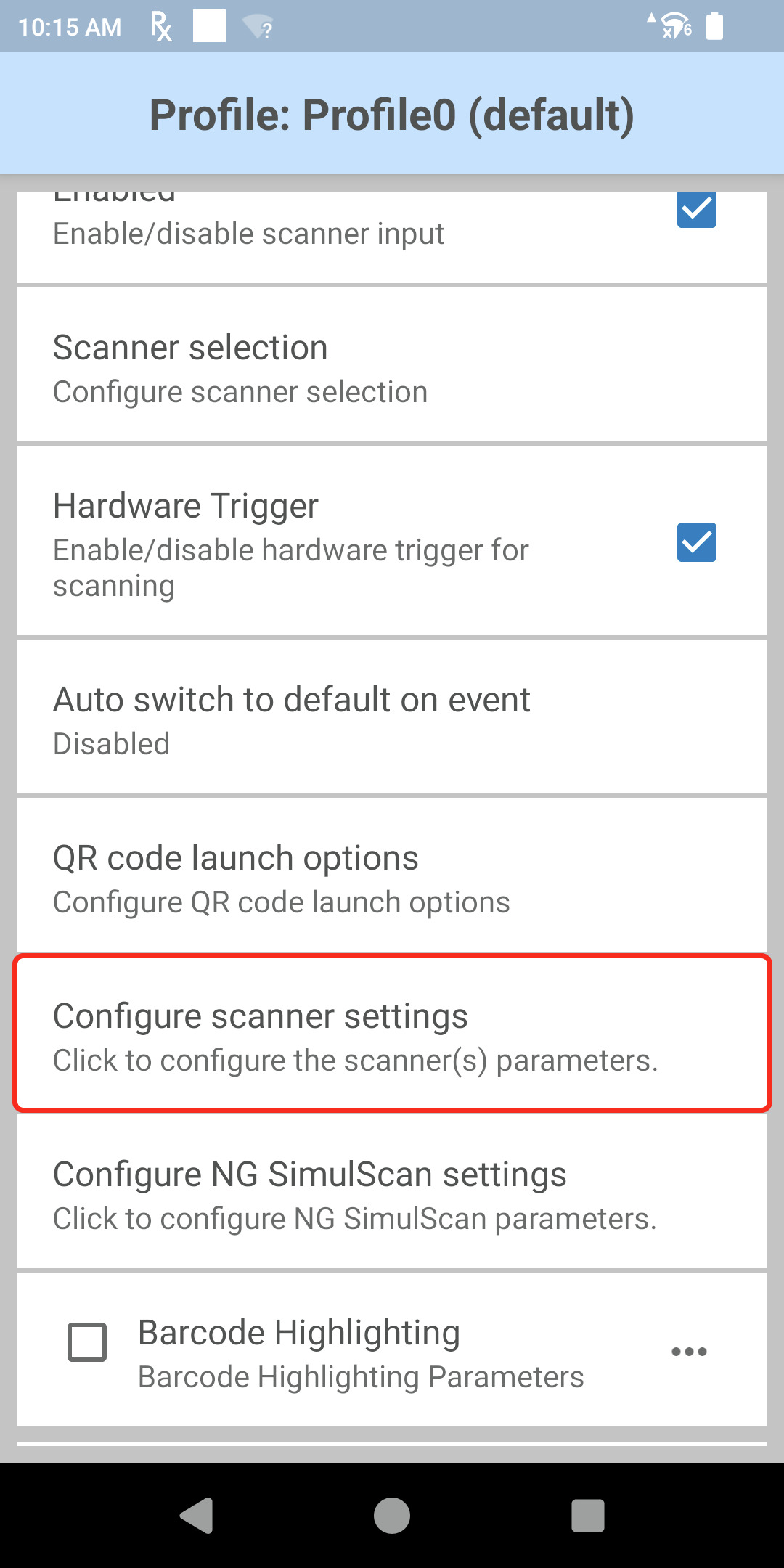 | Select the menu "Configure scanner settings". |
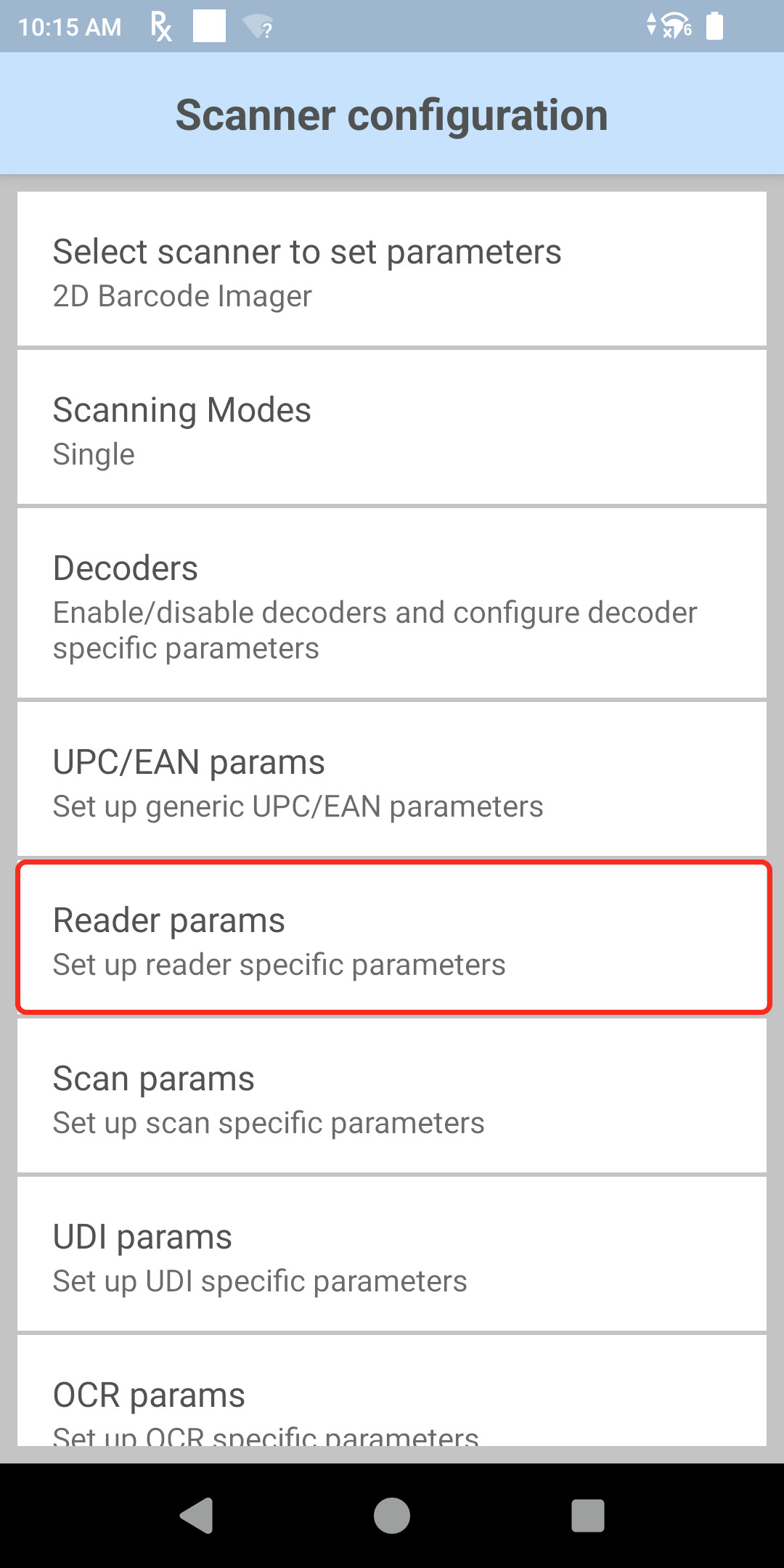 | Select the menu "Reader params". |
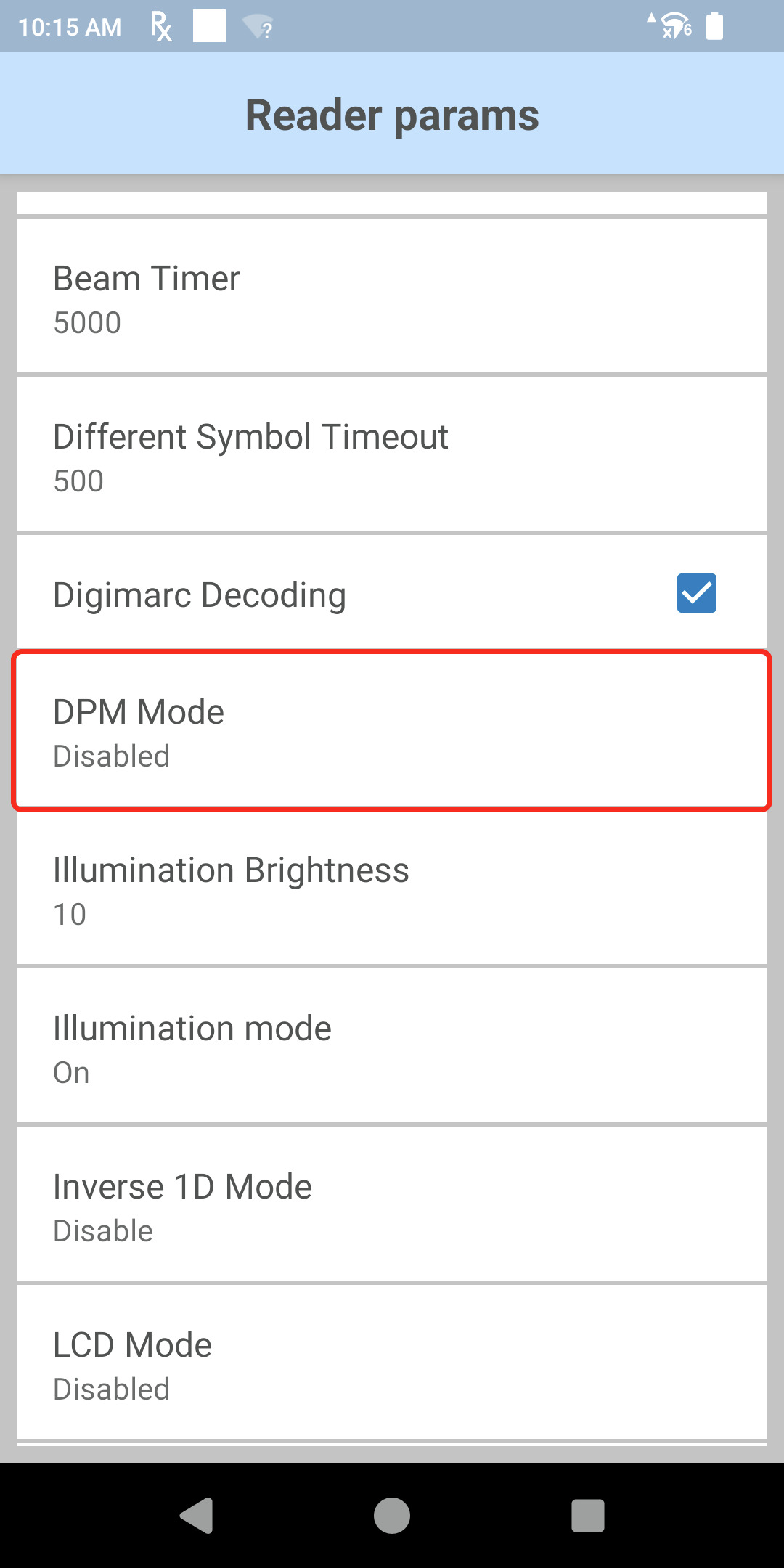 | Select the menu "DPM Mode". |
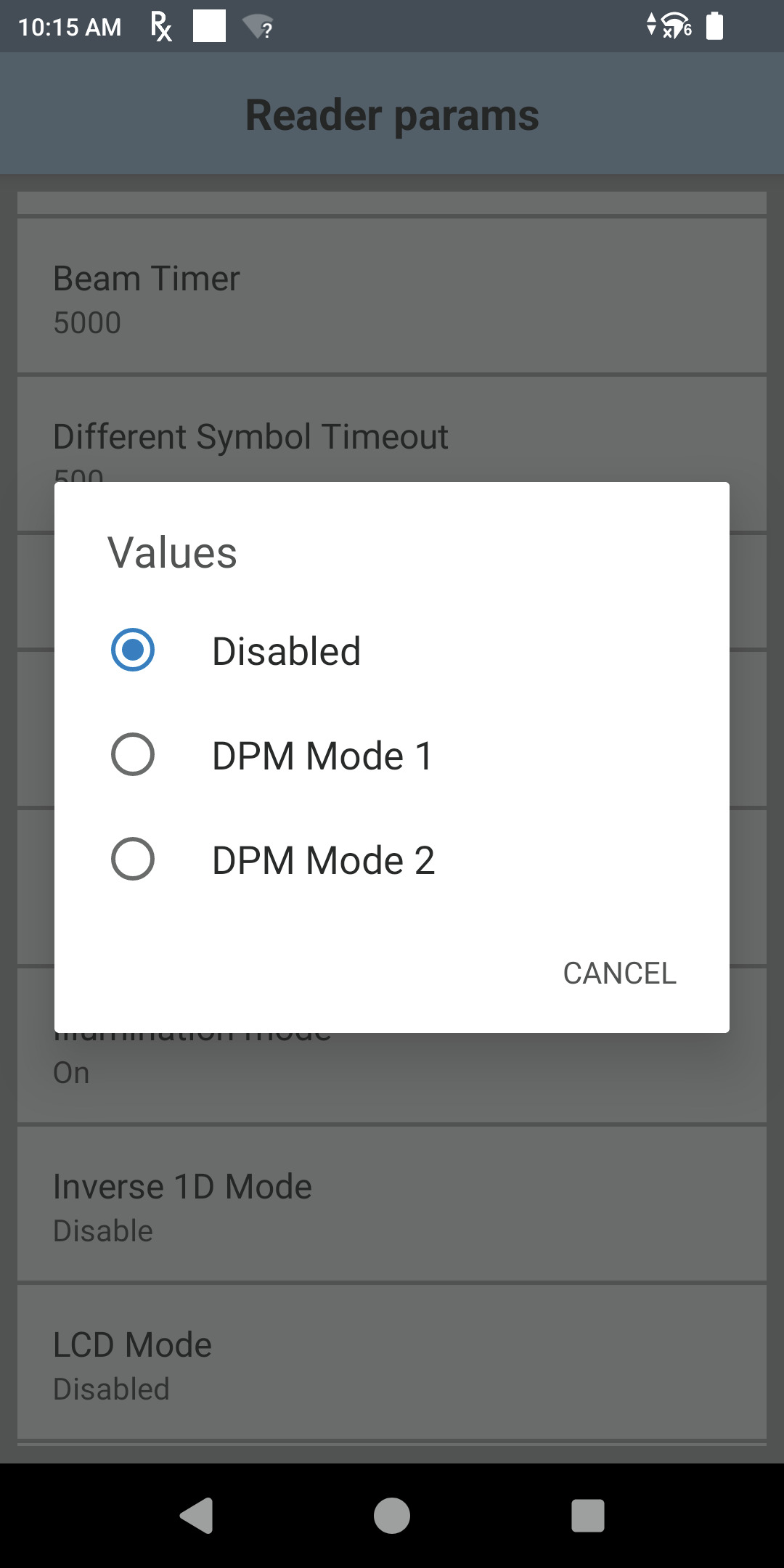 | Disabled: DPM is disabled. DPM Mode 1 - smooth surfaces: Perfect for the tiny, laser-etched Data Matrix codes found on printed circuit boards (PCBs), medical instruments, and electronic component housings. This mode enables end-to-end component traceability in high-tech manufacturing and automates surgical asset management and FDA Unique Device Identification (UDI) compliance in healthcare. DPM Mode 2 - rough/machined surfaces: Designed to capture larger, stamped, or dot-peened barcodes on machined metal parts, engine blocks, and heavy industrial fittings. This mode streamlines sub-assembly verification, work-in-progress (WIP) tracking, and long-term maintenance logging in industrial, automotive, and aerospace environments. |