
Offline updates for the BARTEC SP9EX1/SC9EX1
Customers with an updated SLA can receive update files for updating SP9EX1/SC9EX1 devices that are not connected to the internet. Read more about it here. If you have been provided a software update file, this can be installed in three different ways. Either the file is pushed from an MDM to the device, or transferred from a PC via USB.
Note: If the current software version is either 1) Android 15 version older than 15020, or 2) Android 13 version older than 13311, then the procedures 1 an 3 below require you to first update the Android update app on the device.
1. Update the device using the OEMConfig app
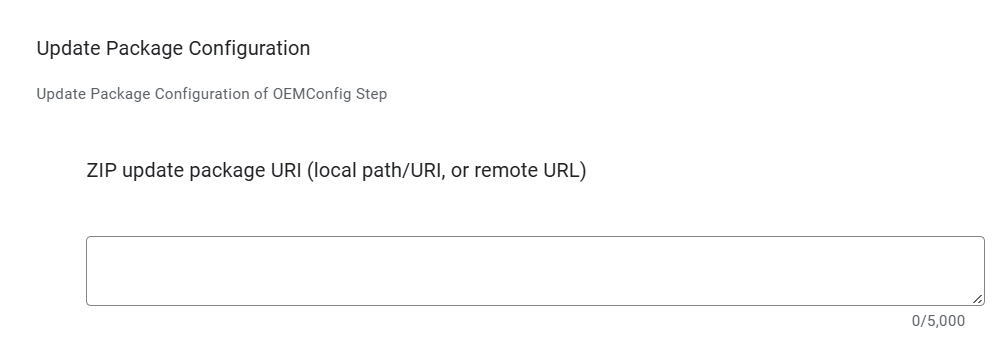
The device can be updated using the BARTEC OEMConfig app. In your MDM, add or edit the managed app configuration for the OEMConfig app. Find the offline update configuration, and enter the location of the update file. This will normally be a remote URL, but you could also specify a file path if you know that the file has already been downloaded to the device.
2. Update the device software from recovery mode
If you have the device available, and have downloaded the update file to your PC, you can update the device from recovery mode. Before attempting to do this, the ADB software tool must be installed on the PC. You can find the tool in the Downloads section here.
Boot to recovery mode
There are two ways you can put the device in recovery mode:
1. Use the phone buttons
- Power off the phone
- Power on, while pressing the volume down button.
- The phone will now boot to fastboot mode. Use the volume buttons to toggle the menu to Recovery mode
- Press the power button.
2. Use the adb command
- Enable ADB on the device
- Connect the device to your PC with a USB cable.
- Open the Windows command line interface: Click the Start menu, type "cmd," and press enter.
- In the terminal, type:
adb reboot recovery
and press enter.
After both these methods, you will see an Android icon and a line saying No command. Simultaneously press the volume up the power button, and the device will proceed to recovery mode.
Apply the update
- Use the volume buttons to select Apply update from ADB, then press the power button
- In the command line interace, type
adb sideload <update filename>
Instead of typing the file name with path, you can click and drag the file to the terminal after entering adb sideload
3. Update the device by pushing a software update file from SOTI
If your MDM is able to push software update files to the device, rename the file offline_update.zip, and install it in:
/sdcard/Download/offline_update.zip
The file must be named offline_update.zip, otherwise it will not be recognized as an update file. Reboot the device, and the ZIP payload is applied, assuming matching builds.
Please note that an appropriate update means either a delta from the current build. Make sure to push the file appropriate for the device.